
You sit down to watch a video, join a meeting, or play a game—and suddenly there’s no sound on your Windows PC. Before you panic or reinstall Windows, know that most audio problems have simple, proven fixes. Whether you’re a beginner or an IT administrator, this guide walks you through 15 methods to fix no sound on a Windows PC, ordered from quick checks to advanced troubleshooting.
We’ll cover volume and output device mistakes, driver issues, Windows Audio services, and hardware checks. Follow the steps in order, and you’ll likely restore audio in minutes—without guesswork or unnecessary repairs.
Introduction
Losing audio on a Windows PC is one of the most frustrating problems a user can face, because it usually happens at the worst possible moment — during a meeting, a movie, or a game. The good news is that the vast majority of “no sound” issues are software-related and can be fixed in a few minutes without reinstalling Windows or buying new hardware. This guide covers How to Fix No Sound on a Windows PC: 15 Methods That Actually Work in practical, step-by-step detail, moving from the fastest checks to deeper system-level repairs.
These 15 methods apply to Windows 10 and Windows 11, and they work whether you are a beginner following on-screen prompts or an IT administrator scripting fixes across a fleet of machines. We will cover basic checks like volume and output device selection, then progress to driver reinstallation, audio service configuration, Windows updates, and command-line repairs. By the end, you should have audio restored or a clear diagnosis of whether the fault is hardware.
Before you begin, remember one principle that applies to every fix in this article: always verify software compatibility with your hardware architecture (ARM64 vs x86). A driver or utility built for one architecture may install silently but fail to load, leaving you with the same silent PC. Keeping your operating system updated before installation prevents dependency conflicts, so check for updates before you start swapping drivers.
Prerequisites
The fixes below assume a few things are in place. Confirm these first so you are not troubleshooting in the dark.
- Windows 10 or Windows 11 on a physical PC, laptop, or virtual machine with an audio device present.
- Administrator rights on the machine, since several methods require Device Manager, Services, or elevated Command Prompt access.
- Working knowledge of navigating Settings and the classic Control Panel, plus basic familiarity with Device Manager.
- A known-good audio source such as a local video file or a system sound, so you can test each change immediately.
- Your hardware architecture confirmed — check Settings > System > About for “System type.” It will read “64-bit operating system, x64-based processor” or “ARM64-based processor.”
- Speakers or headphones physically connected and, where relevant, powered on with the correct input selected.
No prior Linux experience is required for any method in this guide. Every fix is performed inside Windows using built-in tools, Device Manager, or the Command Prompt. If you can follow menu instructions, you can complete all 15 methods.
Preparation
Preparation reduces the chance of making things worse and makes rollback easy if a fix backfires.
- Create a restore point. Search for “Create a restore point” in the Start menu, select your system drive, and click Create. Name it something like “Before audio fixes.”
- Note your current audio device model. In Device Manager, expand Sound, video and game controllers and write down the exact name of your output device.
- Download the correct driver ahead of time. Visit your PC or motherboard manufacturer’s support page and download the audio driver for your exact model. Verify compatibility with your architecture (ARM64 vs x86) before downloading — do not assume the generic download fits.
- Back up custom audio settings if you use third-party mixing software, equalizers, or virtual audio cables.
- Run Windows Update first. Keeping your operating system updated before installation prevents dependency conflicts, and audio updates often ship through the same channel.
- Have a second device ready — a phone or tablet — so you can look up model-specific instructions if the screen goes quiet and unresponsive.
Once these are done, work through the methods in order. Most people find their fix in the first five or six steps.
Installation Steps
This section walks through the 15 methods. Steps 1 through 6 are the structured procedure; the remaining methods are targeted diagnostics and repairs. Subheadings below follow the required format.
Step 1: Review prerequisites and compatibility
Confirm you have administrator rights, admin access to Device Manager, and the correct architecture noted. If the machine is ARM64, avoid x86-only audio utilities — they may run under emulation but fail to hook the audio stack. If it is x64, standard drivers are fine. Write down your audio device name from Device Manager so you can identify it later.
Step 2: Prepare the environment
Before changing anything, check the simple things that account for a surprising share of “no sound” reports. Unmute the system volume, turn up the physical knob on your speakers, and confirm headphones are plugged into the correct jack or USB port. If you use an external monitor with speakers, verify its input source is set to the correct HDMI or DisplayPort channel. Then create your restore point and run Windows Update so your system is current.
Step 3: Configure core settings
Most silent PCs are simply pointed at the wrong output device. Click the speaker icon in the taskbar, expand the volume flyout, and select the correct output device. In Windows 11, go to Settings > System > Sound and confirm the output device matches what you are actually using. Then open the classic Sound control panel, go to the Playback tab, right-click your device, and choose “Set as Default Device” and “Set as Default Communication Device.” Repeat for the Recording tab if your microphone is also affected.
Step 4: Run the main installation procedure
With the basics configured, run through the core repair methods in this order:
- Method 1 — Run the built-in audio troubleshooter. Settings > System > Sound > Troubleshoot, or right-click the speaker icon and choose “Troubleshoot sound problems.”
- Method 2 — Restart Windows Audio services. Press Win+R, type services.msc, and restart “Windows Audio” and “Windows Audio Endpoint Builder.” Set both to Automatic startup.
- Method 3 — Reinstall the audio driver. In Device Manager, right-click your audio device, choose Uninstall device, tick “Delete the driver software for this device,” reboot, and let Windows reinstall it.
- Method 4 — Install the manufacturer driver manually. Run the download you prepared earlier. This is the point where architecture matters most: if the installer refuses or the device stays silent, verify you grabbed the ARM64 or x64 build, not the other one.
- Method 5 — Roll back a recent driver update. In Device Manager, open the device properties, go to the Driver tab, and click “Roll Back Driver” if it is available.
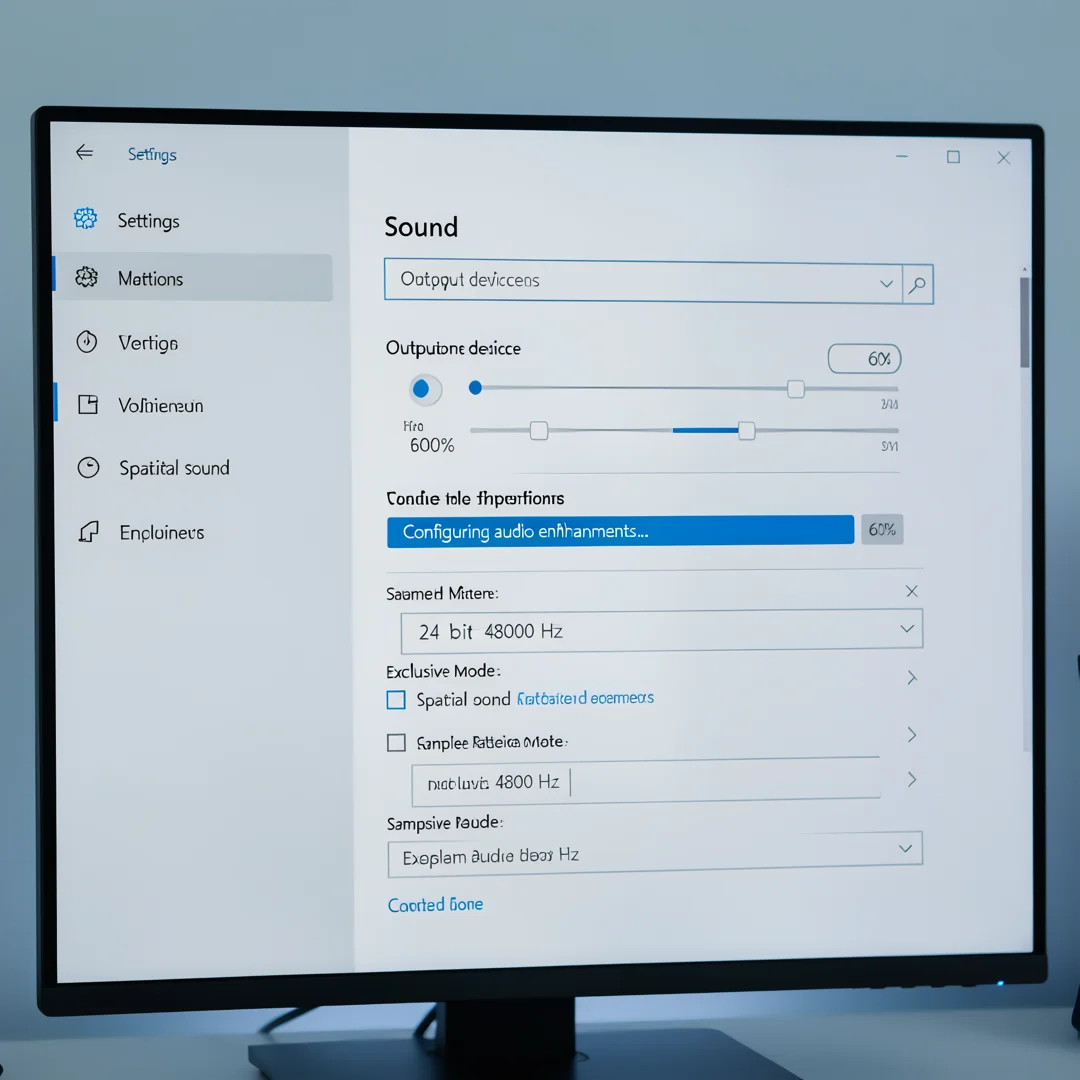
- Method 6 — Disable audio enhancements. In the device properties, open the Enhancements or Advanced tab and disable all enhancements and exclusive-mode options.
- Method 7 — Change the default audio format. In the Advanced tab, try 16-bit, 44100 Hz or 48000 Hz instead of a higher setting.
- Method 8 — Run the audio and system file checks. Open Command Prompt as administrator and run sfc /scannow, followed by DISM /Online /Cleanup-Image /RestoreHealth.
- Method 9 — Update or reinstall the chipset driver. Faulty chipset drivers can break audio enumeration on some laptops.
- Method 10 — Check BIOS/UEFI audio settings. On desktops, confirm onboard audio is enabled in the firmware.
- Method 11 — Boot into Safe Mode. If audio works there, a third-party app or startup item is interfering.
- Method 12 — Disable exclusive-mode and spatial sound. Turn off Spatial Sound and any “Allow applications to take exclusive control” checkboxes.
- Method 13 — Perform a clean boot. Use msconfig to disable non-Microsoft services and startup items, then retest.
- Method 14 — Test with another user profile. A corrupted profile can carry broken audio settings; a new profile isolates that.
- Method 15 — Test alternate hardware. Swap speakers, cables, or use Bluetooth headphones. If nothing produces sound, the issue may be physical.
Step 5: Verify the installation
After each change, test audio immediately using a short local file or the Windows sound test in Settings. Confirm the correct output device is selected, the volume meter in the Sound settings shows activity during playback, and no error icon appears next to the device in Device Manager. If a method fails, revert it before moving on so you do not stack conflicting changes.
Step 6: Configure post-install options
Once sound is back, lock in the working configuration. Set your correct device as default, re-enable only the enhancements you actually want, and note which method fixed the problem so you can repeat it quickly if it recurs. If you updated a driver, keep a copy of the working installer in a known folder.
Post-Installation
After the fix, spend a few minutes hardening the setup so the problem does not return.
- Pin a quick-access shortcut to the Sound settings page so you can switch devices in seconds.
- Document the fix. If you are an administrator, record which method resolved the issue and your device model and driver version.
- Keep drivers current but stable. Update audio and chipset drivers when a security or stability update is released, not on every minor revision.
- Schedule Windows updates. Keeping your operating system updated before installation prevents dependency conflicts for future drivers and cumulative updates.
- Verify architecture on every driver download. Confirm ARM64 vs x86 each time, especially on mixed-device fleets where x64 installers are the common default.
- Run a final sound test on speakers, headphones, and any conferencing app to confirm the fix holds across the apps you use most.
Troubleshooting
If audio is still missing after all 15 methods, use the answers below and the deeper checks that follow.
How long does it take to complete How to Fix No Sound on a Windows PC: 15 Methods That Actually Work?
Most users resolve the issue in 10 to 30 minutes by working through the first six or seven methods. A full pass through all 15 methods, including driver downloads and a clean boot, typically takes 45 to 90 minutes. If hardware is faulty, diagnosis can take longer, but the software fixes themselves are quick.
Do I need prior Linux experience?
No. Every method in this guide uses Windows-native tools: Settings, Control Panel, Device Manager, Services, and Command.
You now have a complete workflow for How to Fix No Sound on a Windows PC: 15 Methods That Actually Work. Keep your system updated, monitor resource usage, and revisit this guide when software versions change.
Next steps: harden your server firewall, set up automated backups, and explore related tutorials linked above.