
Bluetooth has become essential for connecting wireless keyboards, mice, headphones, and other peripherals to Windows 11. When it suddenly stops working, the disruption affects everyday users and managed fleets alike. Whether a single device refuses to pair or Bluetooth disappears entirely from Settings, the cause is usually a driver, service, or power-management issue that can be resolved in minutes.
This guide walks you through how to fix Bluetooth not working on Windows 11 with clear, step-by-step solutions. From quick checks to advanced troubleshooting for IT administrators, these methods help you restore reliable wireless connectivity fast.
Introduction
Bluetooth has become an essential part of everyday computing on Windows 11. It connects wireless mice, keyboards, headsets, speakers, phones, smartwatches, and countless other peripherals. When Bluetooth stops working, the impact is immediate and frustrating. A wireless mouse freezes, a headset refuses to pair, or the Bluetooth toggle disappears from Settings entirely. For IT administrators managing fleets of Windows 11 devices, the same failure can affect dozens or hundreds of users at once, often generating a flood of help-desk tickets.
This guide covers How to Fix Bluetooth Not Working on Windows 11 in practical, step-by-step detail. It is written for both beginners who just want their headphones to connect again and IT administrators who need a repeatable, documented procedure for repairing Bluetooth on managed endpoints. The methods here range from simple toggles and driver reinstalls to advanced checks involving hardware compatibility, power management, and system services.
Before diving in, it helps to understand what can actually break Bluetooth on Windows 11. Common causes include corrupted or outdated Bluetooth drivers, disabled services (such as the Bluetooth Support Service), aggressive USB power-saving settings that shut down the Bluetooth radio, Windows updates that introduce regressions, malfunctioning Fast Startup, and hardware-level issues such as a failed radio module or a loose internal antenna connection. On ARM64 devices like the Surface Pro X or Windows Dev Kit, an additional layer of complexity exists because x86 drivers will not install or run natively. Always verify software compatibility with your hardware architecture (ARM64 vs x86) before downloading any driver package.
The good news is that most Bluetooth problems on Windows 11 are software-related and can be resolved within 15 to 30 minutes without special tools. A minority of cases involve hardware failure, and this guide will help you determine when to escalate or replace a component.
Prerequisites
Before you begin troubleshooting, gather the following requirements. Skipping this stage is the most common reason fixes fail or create new problems.
- Administrative access: You must be signed in as a local administrator or be able to elevate via UAC. Changing services, reinstalling drivers, and editing power settings all require admin rights.
- Windows 11 build awareness: Know your build number. Press Windows key + R, type winver, and press Enter. Keeping your operating system updated before installation prevents dependency conflicts, so check for pending cumulative updates first.
- Hardware architecture identification: Determine whether your device is ARM64 or x86/x64. Go to Settings > System > About and look at “System type.” This is critical because Bluetooth drivers are architecture-specific. Installing an x64 driver on an ARM64 device will fail silently or cause instability.
- Your device manufacturer and model: Driver packages from OEMs (Dell, HP, Lenovo, Asus, Microsoft Surface) are often more reliable than generic Windows Update drivers, especially for Bluetooth radios integrated into Wi-Fi combo cards.
- Internet connection: A wired Ethernet connection is ideal while troubleshooting Bluetooth, since you may temporarily lose wireless connectivity when reinstalling combo Wi-Fi/Bluetooth drivers.
- External mouse and keyboard: If your only input devices are Bluetooth, borrow a USB mouse and keyboard. Losing input mid-repair is avoidable and irritating.
- Backup of important data: Driver changes rarely delete files, but a restore point is cheap insurance. Create one at Control Panel > System > System Protection > Create.
No Linux experience is needed for any step in this guide. Everything is performed inside Windows 11 using built-in tools or vendor installers. If you are an IT administrator deploying this fix across an estate, note that steps can be scripted with PowerShell, Intune, or Group Policy, but that is beyond the scope of this walkthrough.
Preparation
Preparation is about stabilizing the environment so that your fixes stick. Begin by disconnecting all Bluetooth peripherals and any USB Bluetooth dongles. This prevents Windows from caching a broken pairing state while you work.
Next, run Windows Update to completion. Go to Settings > Windows Update and click “Check for updates.” Install everything offered, including optional driver updates found under “Advanced options” > “Optional updates.” Keeping your operating system updated before installation prevents dependency conflicts, particularly with Bluetooth stack components that rely on the Windows Driver Framework.
Create a full system restore point if you have not already done so. Then open Device Manager by right-clicking the Start button and selecting it. Expand the “Bluetooth” category and also expand “Network adapters.” Note the exact names of the Bluetooth radio and Wi-Fi adapter. Many laptops use a single combo card (for example, Intel AX201 or MediaTek MT7921), meaning the Bluetooth and Wi-Fi drivers come from one package.
Check the power plan. Go to Control Panel > Hardware and Sound > Power Options > Change plan settings > Change advanced power settings. Under “USB settings” > “USB selective suspend setting,” set it to Disabled for both battery and plugged-in states. Under “Wireless Adapter Settings” > “Power Saving Mode,” set both to “Maximum Performance.” These small changes eliminate a large class of intermittent Bluetooth dropouts.
Disable Fast Startup temporarily. Go to Control Panel > Power Options > “Choose what the power buttons do” > “Change settings that are currently unavailable,” then uncheck “Turn on fast startup.” Fast Startup can preserve a corrupted driver state across reboots, defeating your repairs.
Finally, note your current driver version. In Device Manager, right-click the Bluetooth adapter, choose Properties, go to the Driver tab, and write down the version and date. You will compare this after installation. For IT administrators, record this on a shared spreadsheet or CMDB so you have a baseline across machines.
Installation Steps
The following six steps form the core procedure. Work through them in order. Each step builds on the previous one, and skipping ahead usually wastes time.
Step 1: Review prerequisites and compatibility
Confirm you have administrator rights, your Windows 11 build number, and your device architecture (ARM64 or x86/x64). Visit your PC manufacturer’s support site and locate the Bluetooth driver download page for your exact model. Compare the listed architecture against your system type. If the page offers only x86/x64 drivers but your system is ARM64, do not download them — instead rely on Windows Update or the Microsoft generic driver. Also check the driver release date; a driver older than your Windows feature update may be incompatible. Document the compatible package you intend to use before moving on.
Step 2: Prepare the environment
If you completed the Preparation section, this step is short. Reconfirm that Fast Startup is off, USB selective suspend is disabled, and all pending Windows updates are installed. Disconnect Bluetooth peripherals. If you use a VPN or third-party network filter, pause it temporarily, as some security tools interfere with hardware re-enumeration. Close unnecessary applications to reduce the chance that a program holding the Bluetooth stack open blocks driver removal. If you are an IT administrator, ensure the device is not mid-way through an Intune or ConfigMgr policy refresh that could reapply settings while you work.
Step 3: Configure core settings
Now configure the foundational Windows components that Bluetooth depends on. Open Services by pressing Windows key + R, typing services.msc, and pressing Enter. Locate “Bluetooth Support Service” and “Bluetooth Audio Gateway Service.” For each, set Startup type to Automatic and click Start if the service is stopped. Next, open Settings > Bluetooth & devices and confirm the Bluetooth toggle is visible. If the toggle is missing, open Device Manager, expand Bluetooth, and check whether the adapter is present with a warning icon. Right-click any device showing a yellow triangle and select “Uninstall device,” checking “Attempt to remove the driver” if offered. Then restart the computer, allowing Windows to re-enumerate the hardware with a clean configuration.
Step 4: Run the main installation procedure
Install the correct driver package you identified in Step 1. If you downloaded an OEM installer, run it as administrator and follow the prompts, rebooting when asked. If you are using a generic Windows driver, open Device Manager, right-click the Bluetooth adapter, choose “Update driver,” select “Search automatically for drivers,” and let Windows find the best match. For a manual approach suited to IT administrators, download the OEM package, extract it to a folder, then in Device Manager choose “Browse my computer for drivers” and point to that folder. After installation, restart the machine — do not skip this, as the Bluetooth stack initializes during boot.
Step 5: Verify the installation
After the restart, reopen Device Manager and confirm the Bluetooth adapter shows no warning icons. Check the Driver tab and confirm the version matches what you installed. Open Settings > Bluetooth & devices and verify the toggle turns on and stays on. Pair a single test device, such as a phone or a Bluetooth mouse, and confirm it connects and remains connected for at least five minutes. If you have a Bluetooth headset, test audio playback. For administrators verifying at scale, use PowerShell’s Get-PnpDevice cmdlet filtered on the Bluetooth class to confirm device status is “OK.”
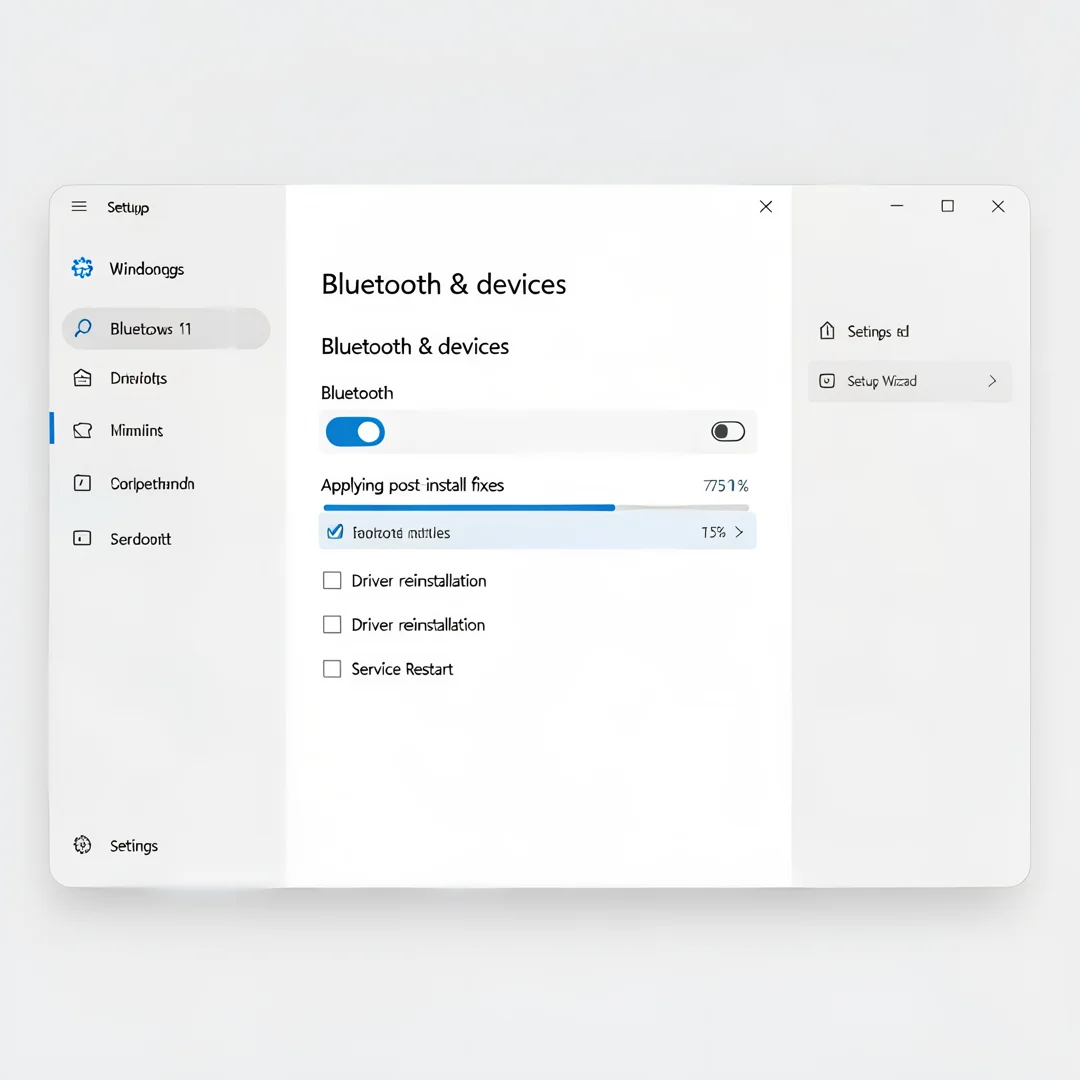
Step 6: Configure post-install options
Once Bluetooth is stable, fine-tune your settings. Re-enable Fast Startup only if you need faster boots — otherwise leave it off for reliability. Re-enable USB selective suspend if battery life matters more than stability, but test thoroughly first. Set your preferred Bluetooth device auto-connect behavior under Settings > Bluetooth & devices > Devices. If you manage multiple machines, create a documented driver baseline and add the Bluetooth driver version to your standard image notes. Consider disabling Bluetooth when not in use via a Group Policy or Intune configuration profile to reduce attack surface.
Post-Installation
After the fix is applied, monitor for 24 to 48 hours. Intermittent Bluetooth failures often reappear within a day if the root cause was power management or a competing driver. Keep a log of the driver version, service states, and power settings you changed so that a future technician can reproduce your work.
- Check event logs: Open Event Viewer and inspect Windows Logs > System for Bluetooth-related errors from the BTHUSB and BTHPORT sources.
You now have a complete workflow for How to Fix Bluetooth Not Working on Windows 11. Keep your system updated, monitor resource usage, and revisit this guide when software versions change.
Next steps: harden your server firewall, set up automated backups, and explore related tutorials linked above.